
Managing an Instance
Each instance has a Manage Instance grid (full-page features) and an Instance Settings dialog (form-style settings). This page covers the NexCraft-specific bits.
The instances list
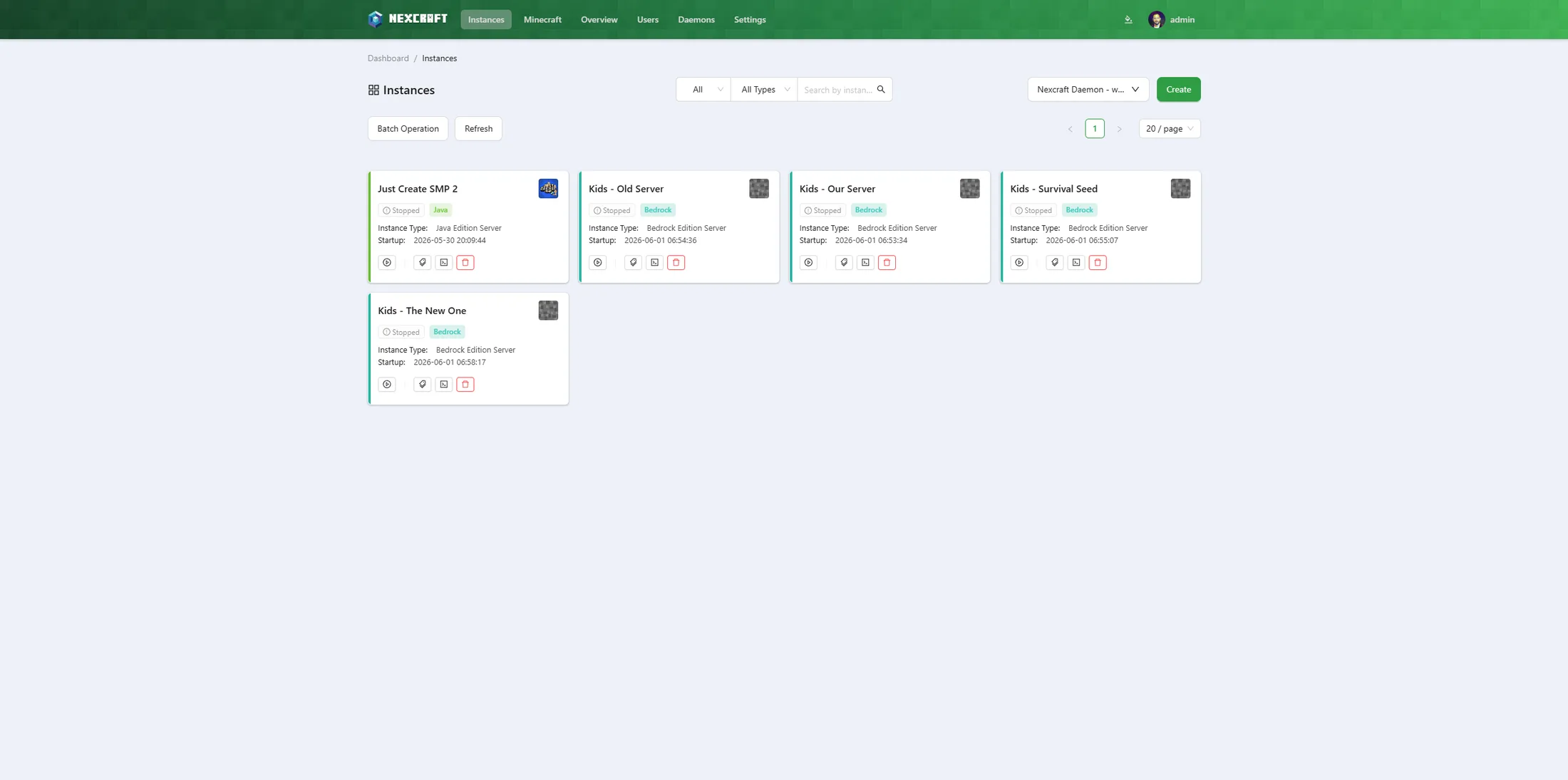
Each card shows an edition badge and a coloured accent stripe — green for Java, teal for Bedrock — so you can tell editions apart at a glance. When a node has both, the toolbar gains an All / Java / Bedrock filter to narrow the list to one edition (single-node view; the global all-daemons tree shows everything).
Instance Settings
Open Instance Settings from the manage grid. The Basic tab holds the everyday settings; Advanced holds working directory, file encoding, and run-as user.
For Minecraft Java instances, the Basic tab also includes:
Server MOTD
An easy single-field editor that writes the motd line in server.properties. Supports & colour codes (e.g. &6Gold &lBold) and a second line. Applies on the next start.
Server Icon
Upload an image — it's resized to 64×64 and saved as server-icon.png for the server list. (Moved here from the manage grid to keep things tidy.)
Shutdown Timeout
Seconds to wait after the stop command before NexCraft force-kills the process. 0 = wait indefinitely.
Startup / Stop Command
The generated start command is editable here; the stop command defaults to stop for Minecraft.
Bedrock servers
Bedrock instances get their own Minecraft settings on the Basic tab — Server Name and Level Name (the active world; changing it switches worlds, so NexCraft warns and asks you to confirm) — plus the Set Server Icon picker.
Event Tasks (auto start / restart)
In Event Tasks you can enable:
- Auto Restart — restart the instance immediately if it stops unexpectedly (optionally capped to N times).
- Auto Start — start the instance when the daemon boots, with a configurable Autostart Delay (seconds) so multiple servers don't all spin up at once.
Automation
The Automation tab adds two hands-off behaviours:
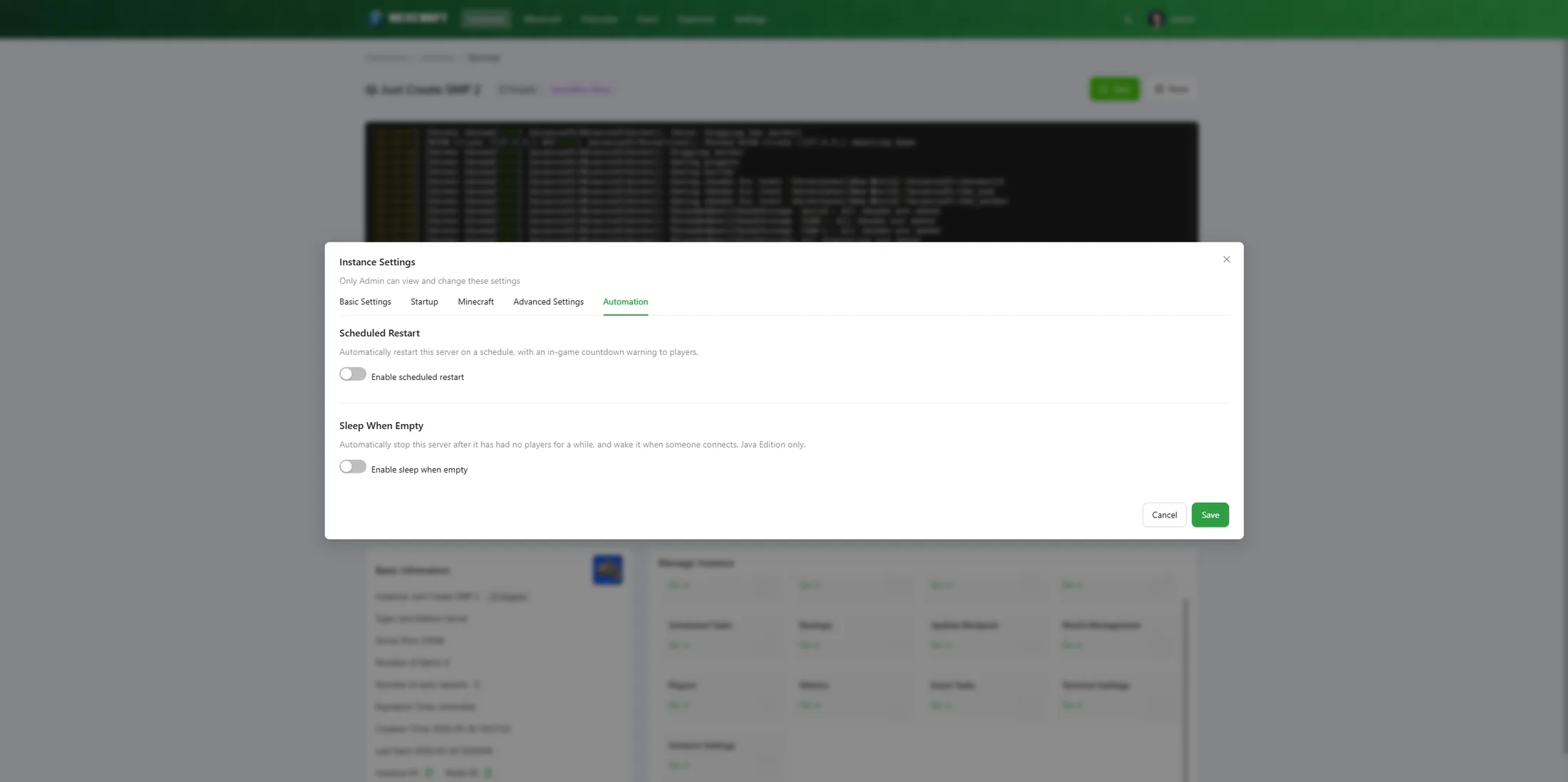
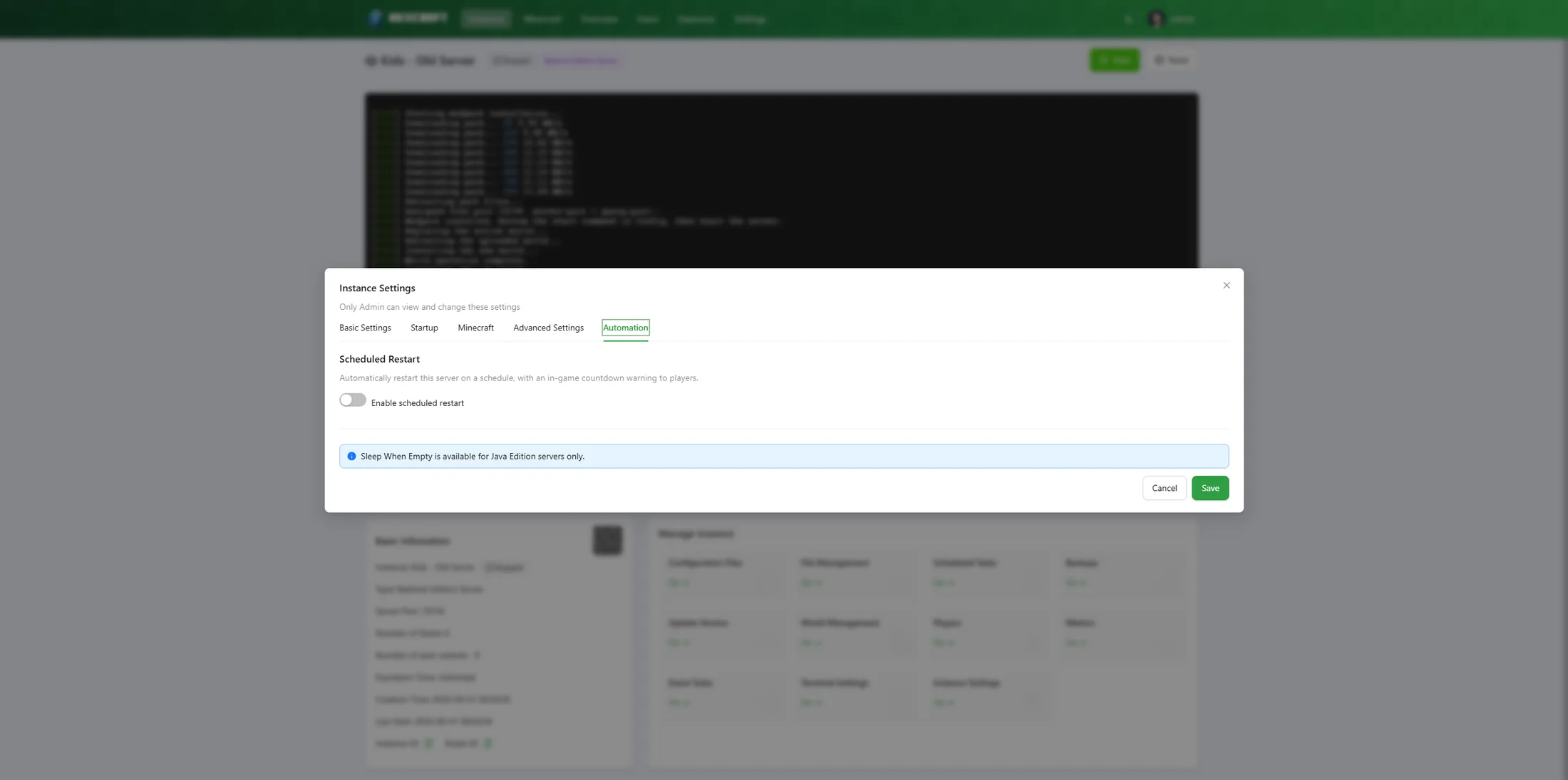
- Scheduled Restart — restart the instance on a cron schedule or fixed interval, with an in-game
saycountdown warning players before it happens. - Sleep on Empty / Wake on Join (Java only) — auto-stop the server after it's been empty for a set idle time, then wake it back up automatically when a player pings it from the server list. Bedrock has no player polling, so it shows a "Java only" notice.
World Management
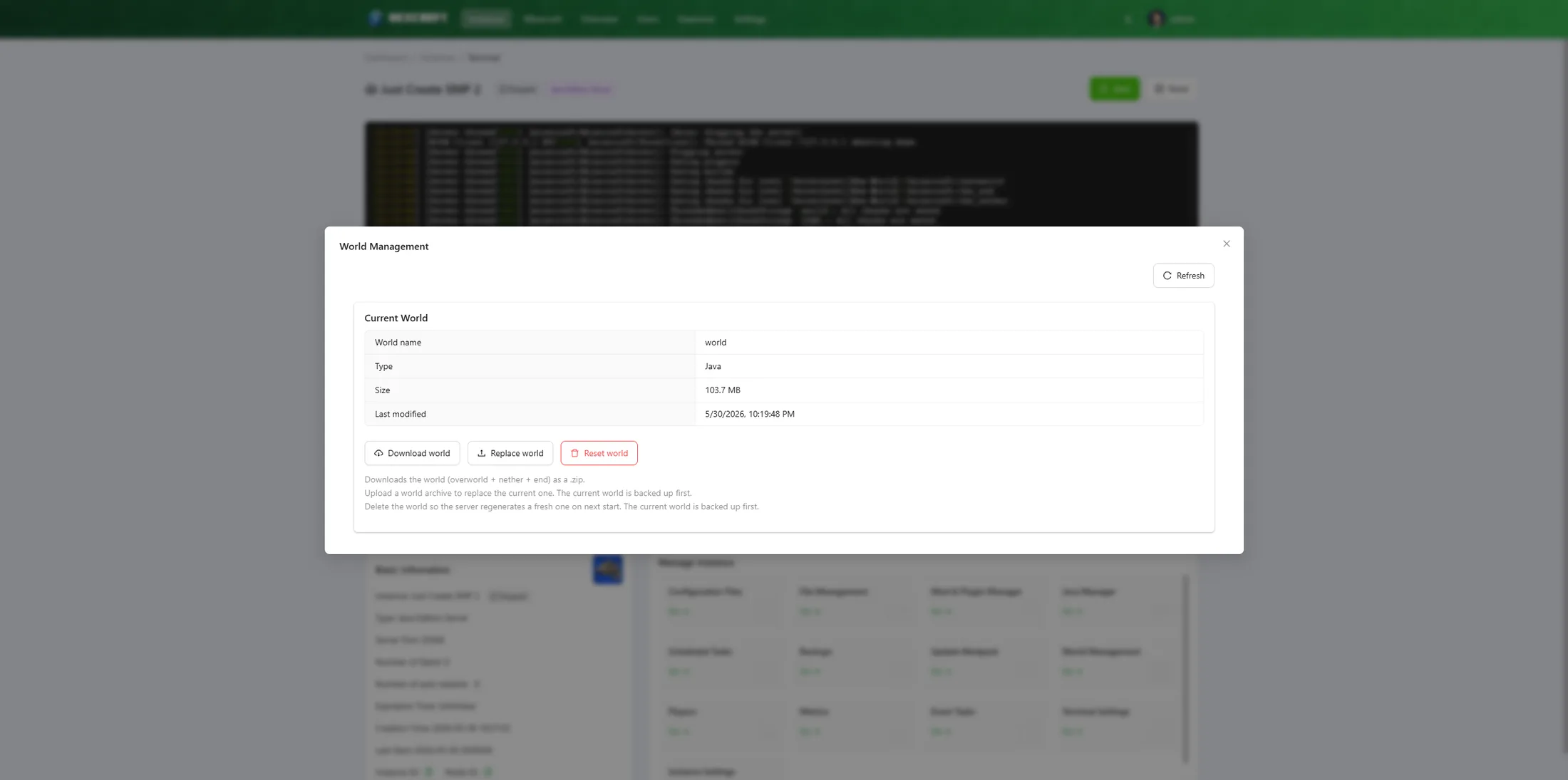
The World Management card (admin only) lets you inspect and swap the active world for both Java and Bedrock instances:
- Info — world name, size, and details.
- Download the current world as a
.zip. - Replace — upload a new world
.zip. NexCraft validates the upload'slevel.datbefore stopping/backing up, so a bad zip never costs you a restart. - Reset — generate a fresh world (with an auto-backup first).
Mod & Plugin Manager
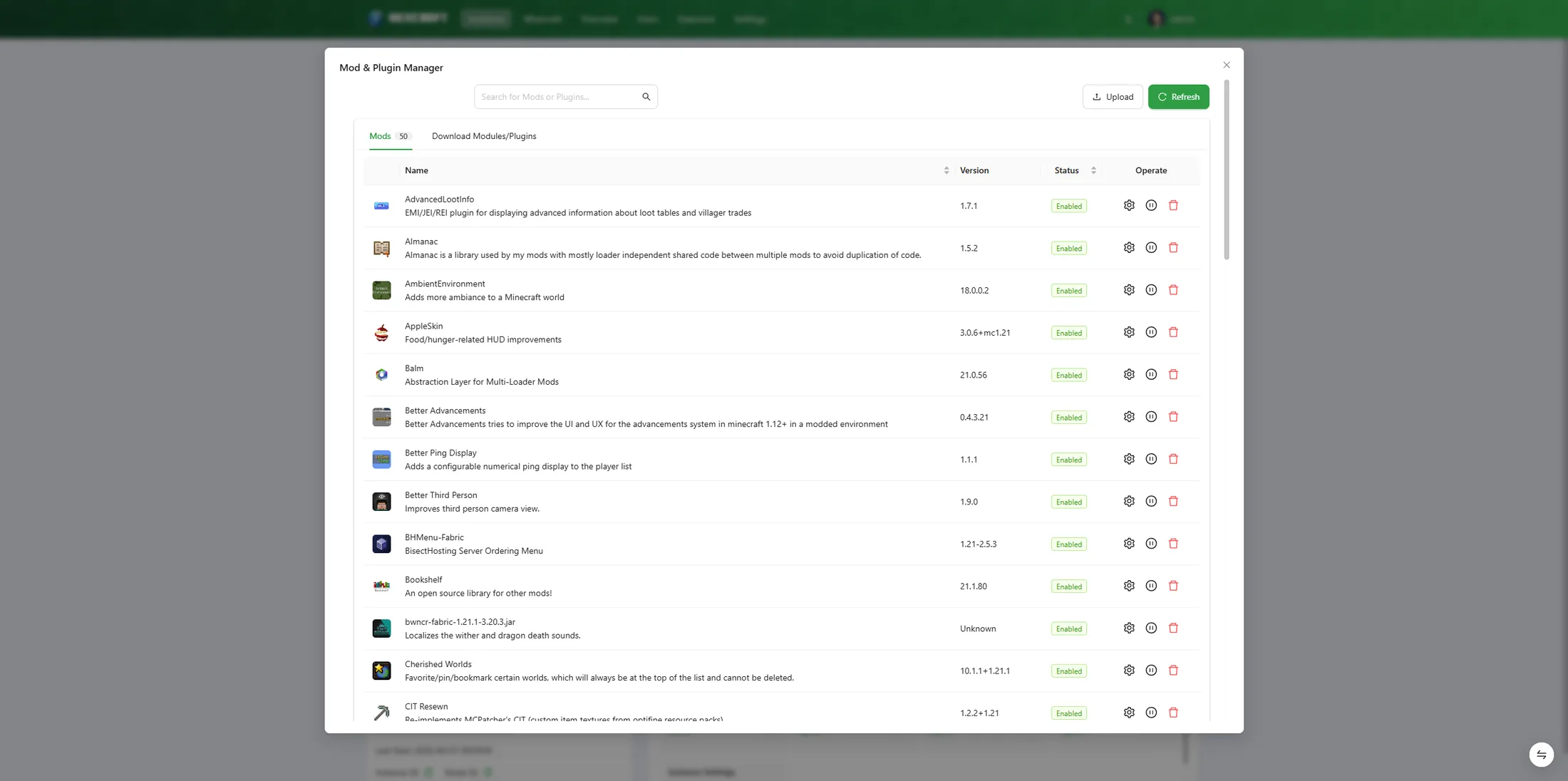
For Java instances (host/general mode), the Mod & Plugin Manager handles a server's mods and plugins without touching the file system by hand:
- Mods / Plugins tabs list what's installed (whichever of
mods/orplugins/the server has). For each entry you can enable/disable, delete, edit its config files, and open the project page (Modrinth / CurseForge / SpigotMC). - Download tab — search Modrinth, CurseForge, and SpigotMC with filters for Minecraft version, type (mod/plugin), environment (server/client), and loader, then install straight into the instance.
- Upload
.jar/.zipfiles directly, or drag-and-drop them onto the card. - On Windows, if the server is running and a file is locked, the action can be queued to run automatically the next time the server stops.
Backups
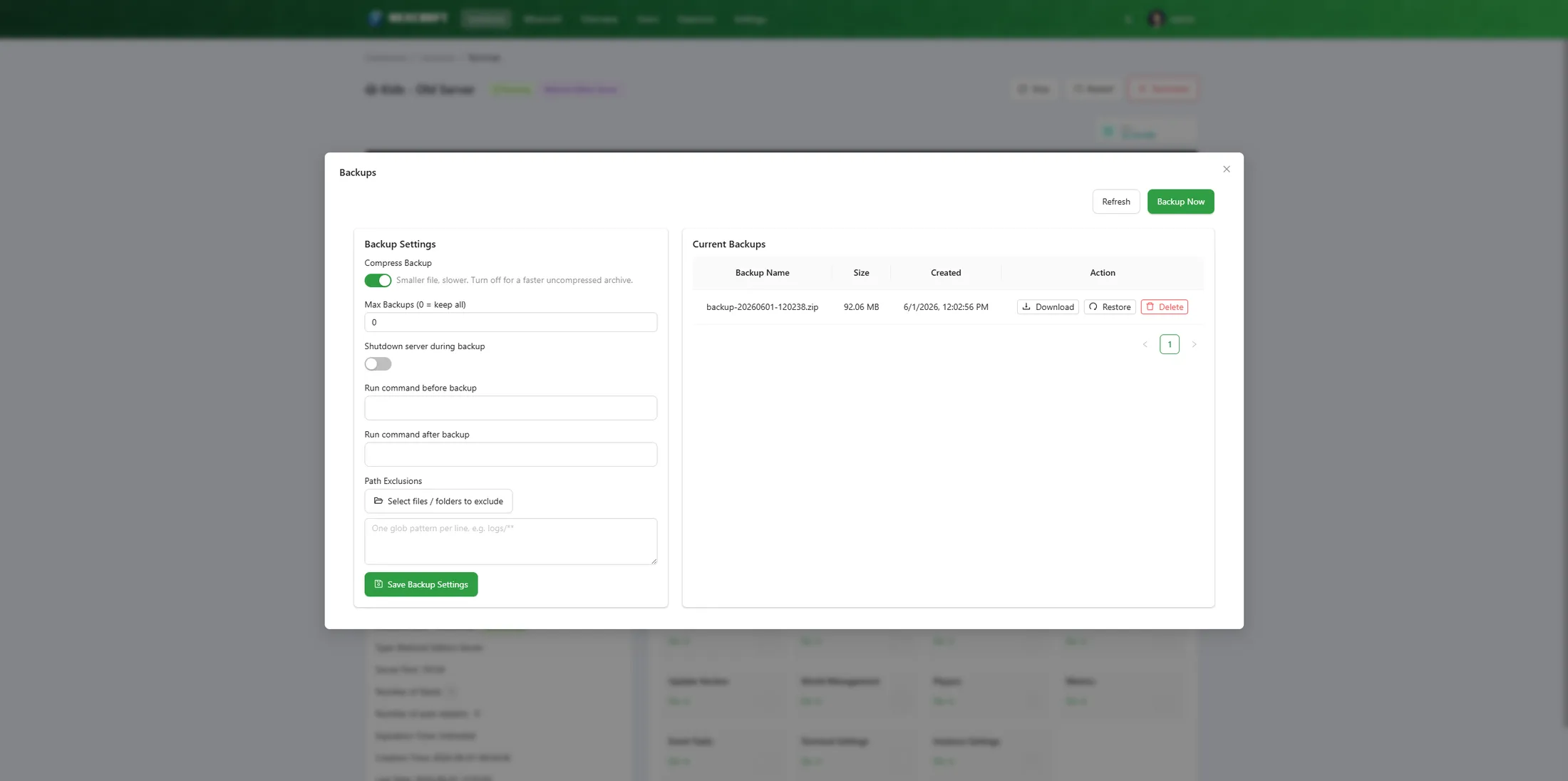
The Backups card supports:
- Manual backups and scheduled backups (cron-style).
- Restore any backup (uses an overwrite-safe extractor so it fully replaces the live files).
- Compression toggle, max backups retention, stop-during-backup, pre/post commands, and file-tree exclusions.
- Download / delete individual backups.
Backups are stored outside the instance folder, so resets/wipes never touch them.
Players (RCON)
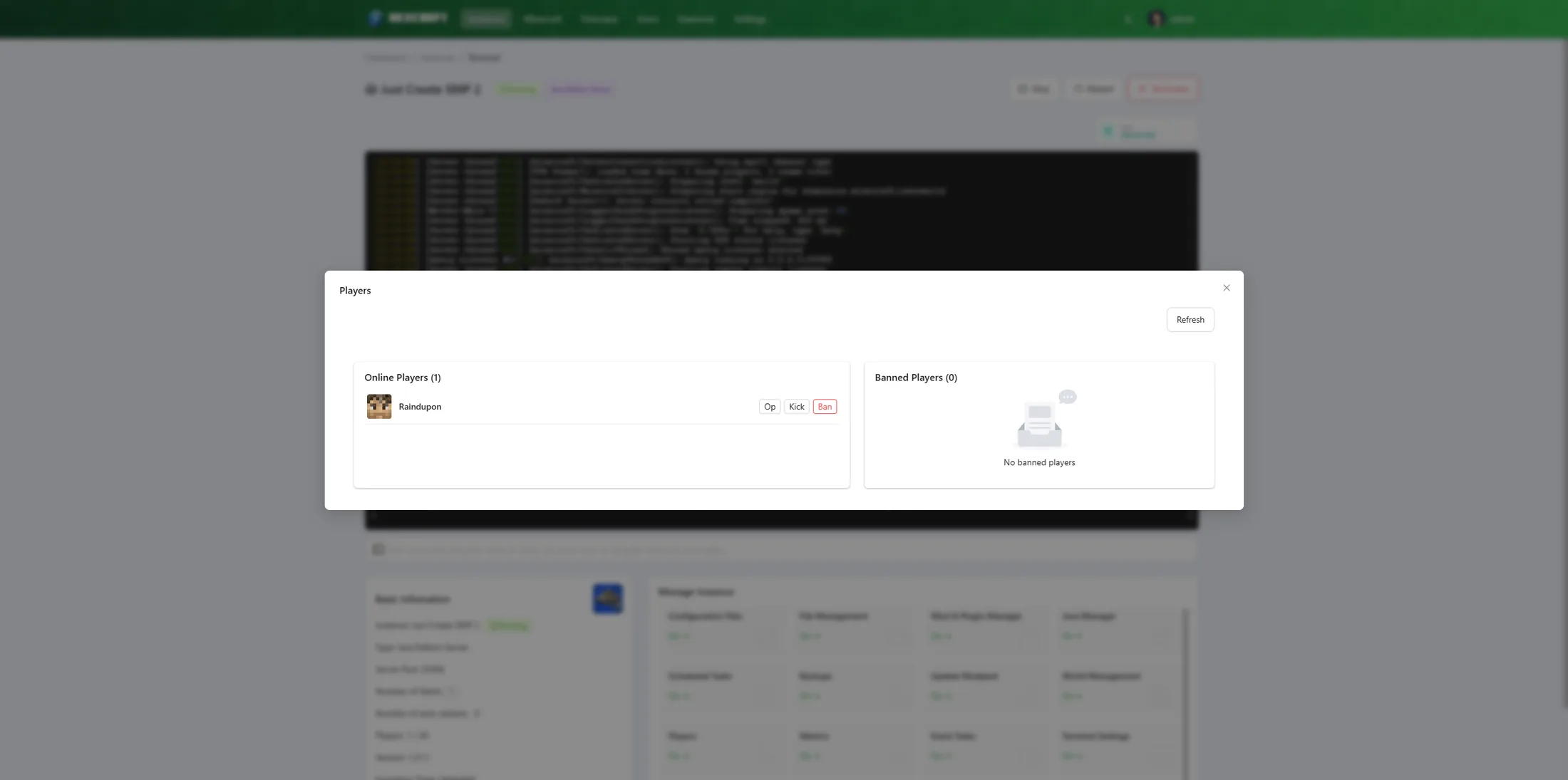
The Players card uses RCON to show who's online (with skin heads) and lets you Op / Deop / Kick / Ban / Unban. NexCraft auto-enables RCON with a random password and a free port when it sets up a server, so this usually works out of the box.
Java only. Player management runs over RCON, which the Bedrock Dedicated Server doesn't support — so this card applies to Java instances.
Metrics
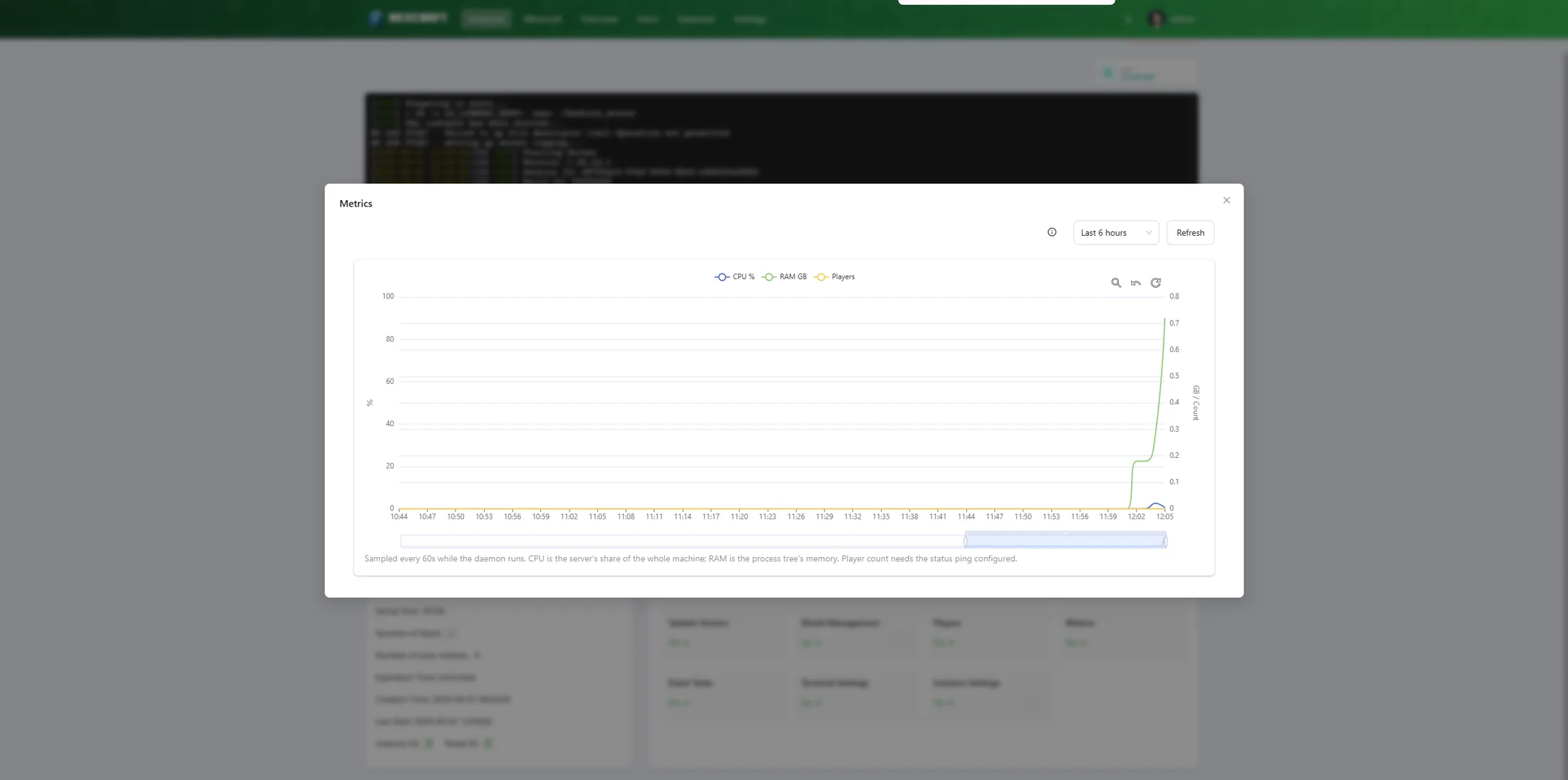
The Metrics card charts per-instance CPU %, RAM (GB), and player count over time, with selectable ranges (1 min → 24 h), shift-wheel zoom and drag-to-zoom. CPU/RAM are measured across the server's process tree (not a container), so they're accurate in host/general mode. The player count refreshes about every 10 seconds.
File Management
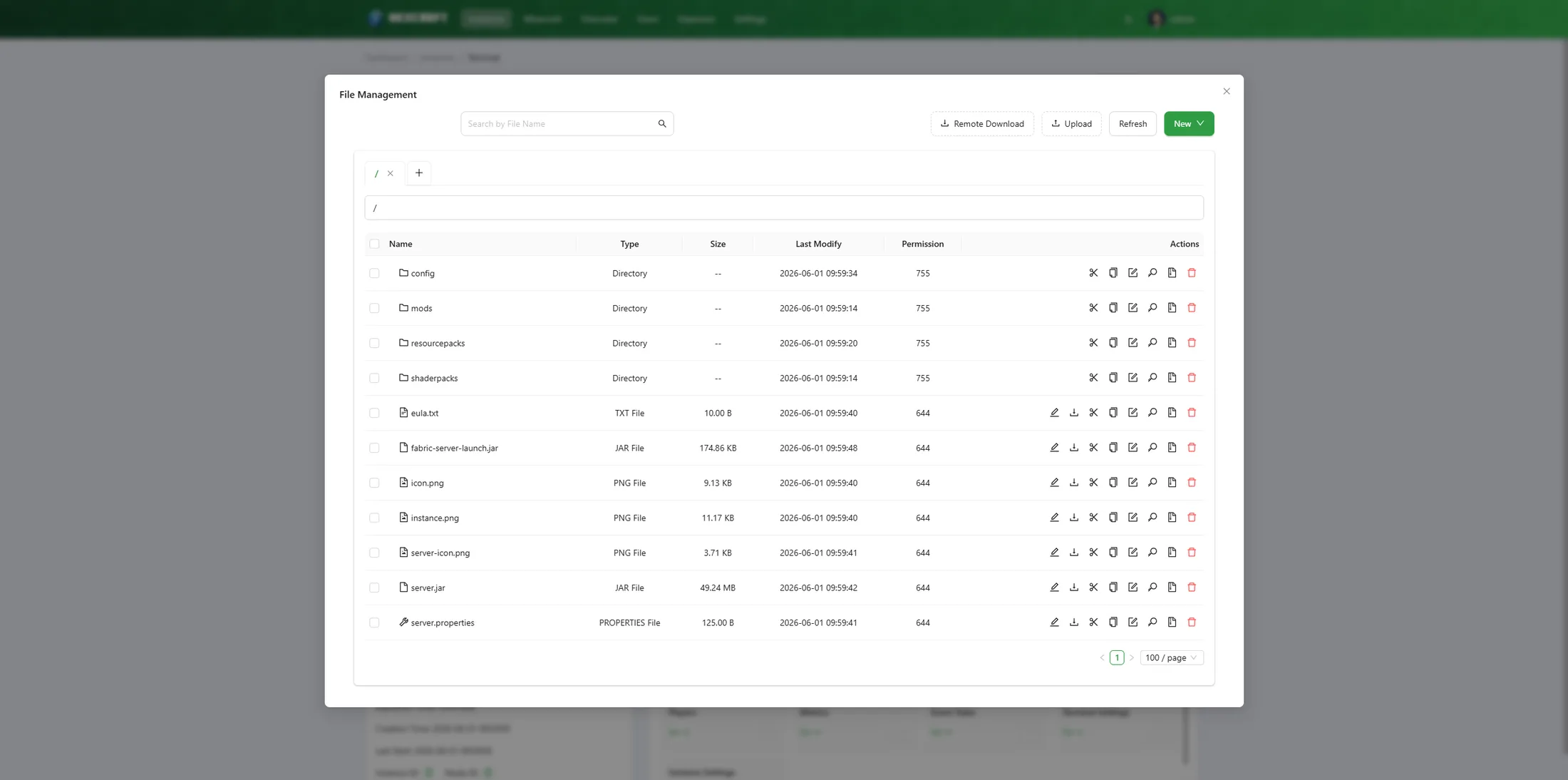
The File Management card is a full file browser for the instance directory: navigate folders, upload / download, create / rename / delete, compress and extract archives, and edit text files (including server.properties and config files) in the built-in editor. Zip extraction uses an overwrite-safe extractor.
Scheduled Tasks
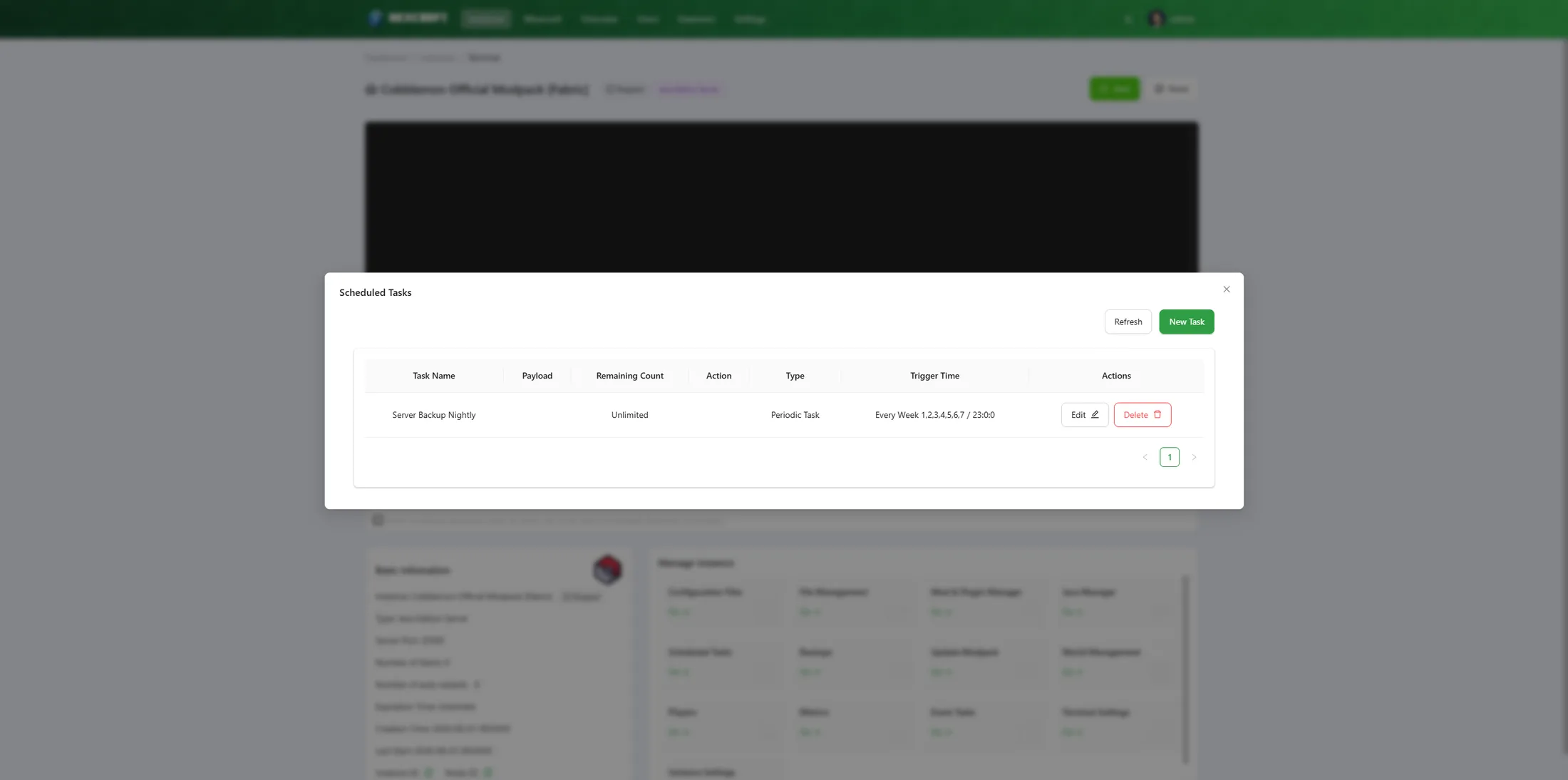
The Scheduled Tasks card runs actions on a timer — a console command, or start / stop / restart — on an interval or a cron-style schedule. It's handy for things like a nightly broadcast or a periodic save. (For automatic restarts with an in-game countdown, prefer Instance Settings → Automation; for backups on a schedule, use the Backups card.)
Java
NexCraft auto-provisions a matching JRE for packs that need one — so an old pack (Java 8/17) or a brand-new one (Java 21/25) just works.
- The daemon ships Java 21 and downloads other versions on demand.
- The Java Manager dialog lets you browse and install specific versions: pick a vendor (Adoptium / Azul Zulu), a major version, then a specific release (with release dates), and click Use to bind it to the instance.
- Installed Javas are referenced via the
{mcsm_java}token in the start command.
See Troubleshooting if a server fails to start with a Java version error.